
Workspaces and teams
Dialogue is rarely written alone. ChatMapper Cloud is built around a shared workspace that holds your projects and your people, with roles that decide who can change what, live presence so you can see who else is in a project, and conflict protection so two writers never silently overwrite each other.
Workspaces, teams, projects
Section titled “Workspaces, teams, projects”- A workspace is the top level — usually one per studio or one per game. It owns projects and members. Your first sign-in creates one for you; you can create more and switch between them.
- A project is one scenario file: its conversations, actors, variables, media and history.
- A team is a named group of members inside a workspace — “Act 2 writers”, “QA” — used to organise larger workspaces.
Click the workspace name in the toolbar (or the tile at the top of the rail) to open the workspace panel.
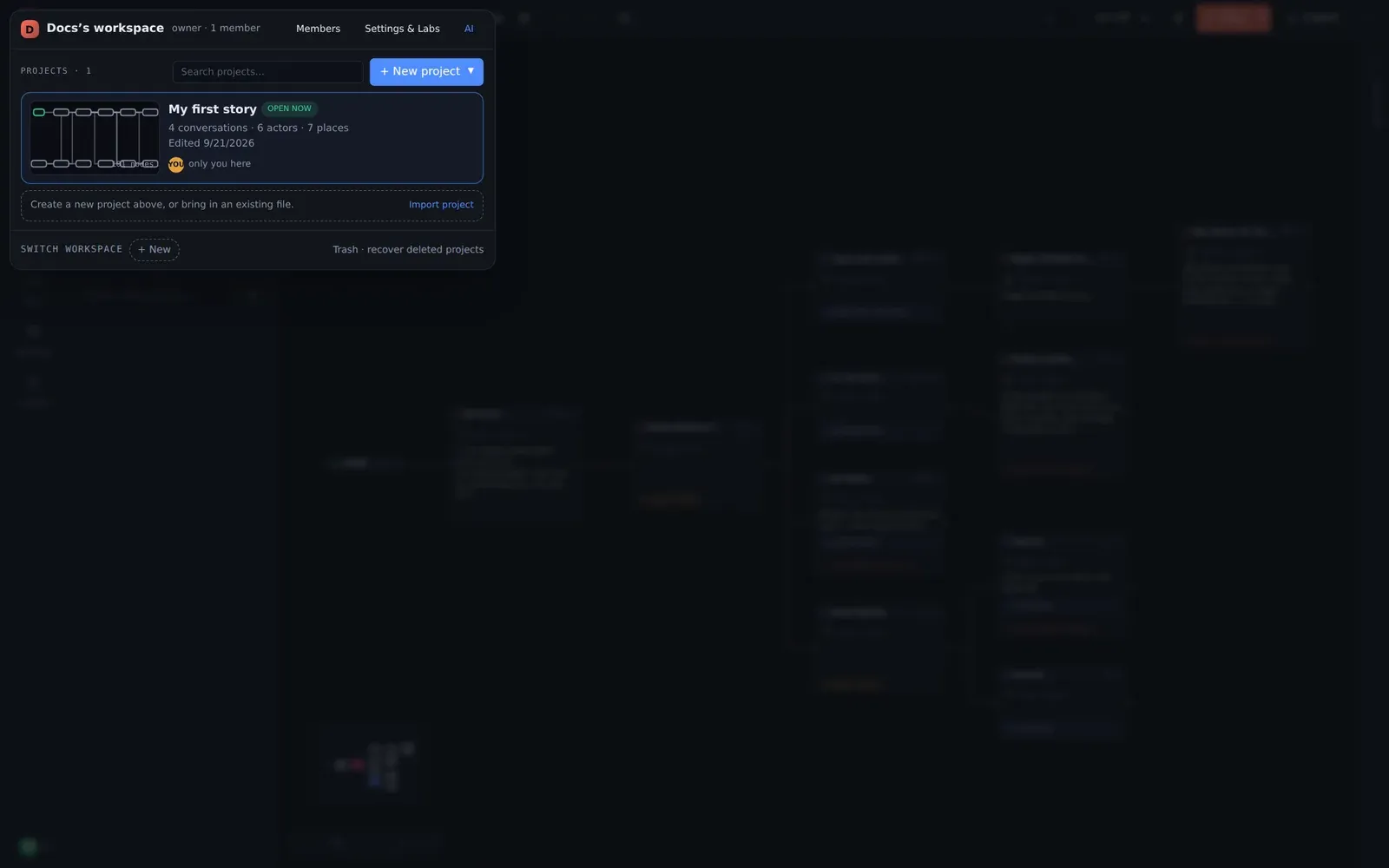
The Projects view lists every project with its size, when it was last edited, and who is in it right now. + New project starts a blank one or the working example; Import project brings in a file. Each project card has Clone and Trash buttons — see Duplicate and recover. The project’s Title in Details is what exports and players display.
Members and roles
Section titled “Members and roles”The Members tab is where you invite people by email and choose their role.
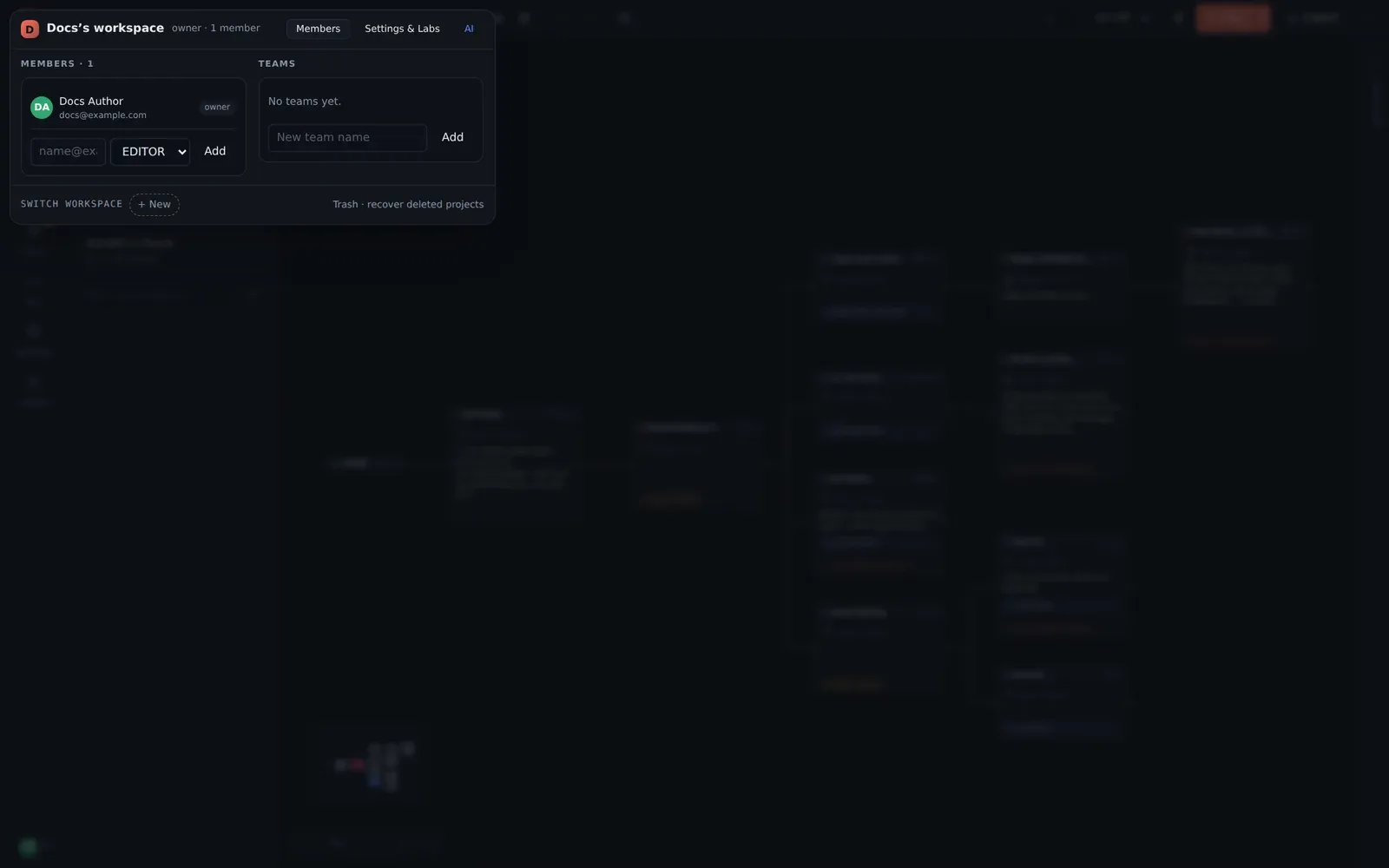
| Role | Can |
|---|---|
| Viewer | Open any project read-only. The editor shows a view only badge; nothing can be changed. |
| Reviewer | Everything a Viewer can, plus leave and resolve reviewer notes. |
| Editor | Edit projects: nodes, assets, media, exports. |
| Admin | Everything an Editor can, plus invite and remove members, manage teams, and change workspace settings and Labs features. |
| Owner | Everything, including billing and deleting the workspace. There is one owner per workspace. |
Roles are per workspace. Someone who needs to be an editor on one game and a viewer on another is simply a member of two workspaces with different roles.
Sharing a single project
Section titled “Sharing a single project”You do not have to add someone to the workspace to get their eyes on one script. Share in the toolbar grants access to this project only:
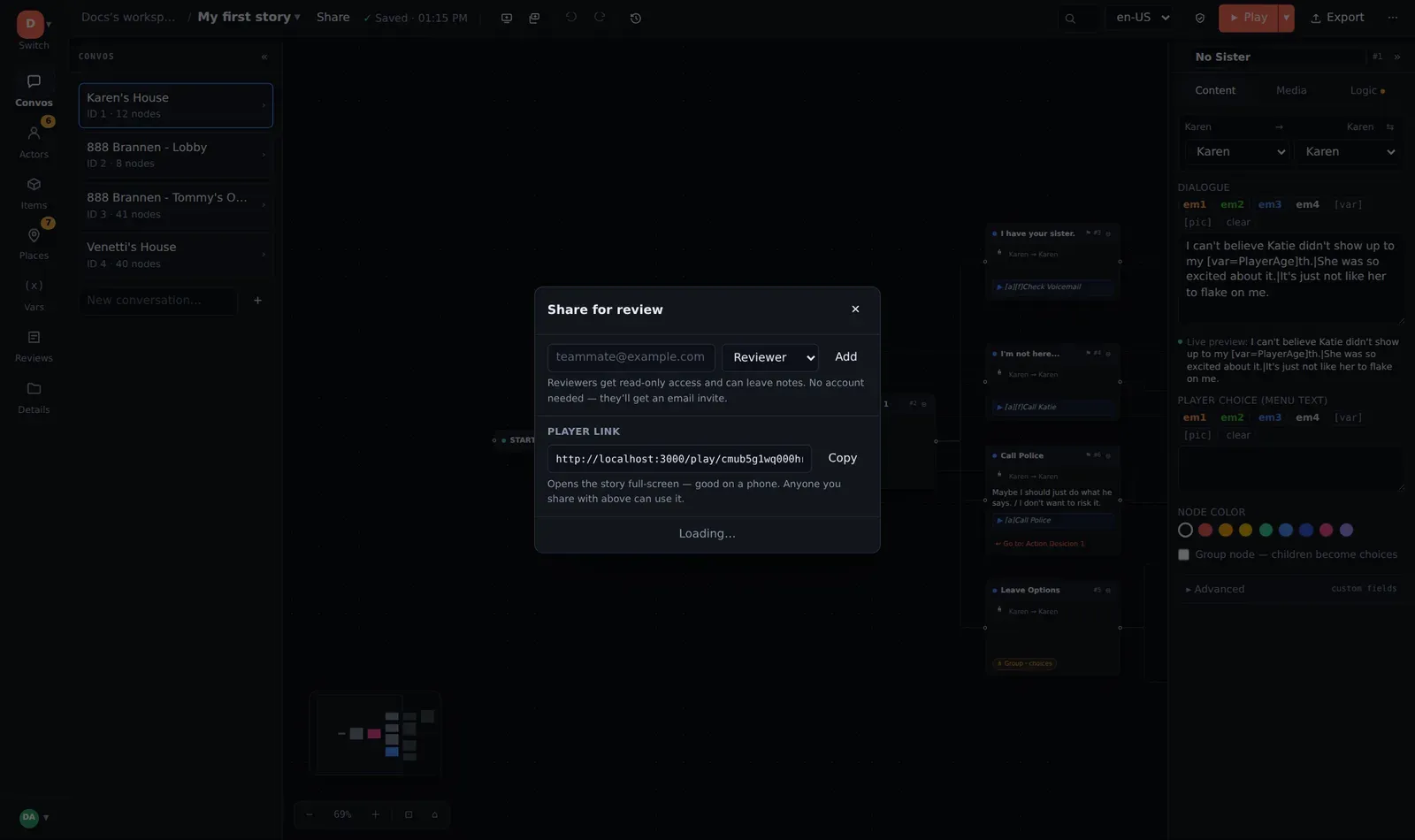
- Enter an email and pick Reviewer, Viewer or (if you are an admin) Editor. Reviewers get a read-only editor and can leave notes.
- The person does not need an account first. They receive an email invitation that signs them in and opens the project.
- The player link opens the story full-screen with no editor at all — good on a phone. It carries the same access rules as the project, so it is a shortcut for people you have already shared with, not a public URL.
- Revoke removes a grant.
Presence — who is here
Section titled “Presence — who is here”The toolbar shows the avatars of everyone who currently has the project open. The project card in the workspace panel shows the same (“only you here”, or a row of avatars). When the AI is working on a project it appears here too — see Controlled AI editing.
Conflict protection
Section titled “Conflict protection”Two people can have the same project open. Each keeps an independent copy in the browser and autosaves it; the server accepts a save only if it is based on the latest version. If someone else saved first, you see a banner instead of a silent overwrite:
- Discard mine & reload — throw away your unsaved changes and take theirs.
- Overwrite with mine — keep yours; theirs is still in history, so nothing is destroyed either way.
In practice the banner is rare — it only appears when two people change the same project within the same few seconds — but it is the reason you can hand a project to a co-writer without a “who has the file?” conversation.
Workspace settings and Labs
Section titled “Workspace settings and Labs”Settings & Labs holds the workspace name and the optional feature switches: media attachments, the AI copilot, generative media, AI conversation gates, voice conversations and actor portraits. Some are on by default; an admin can turn any of them off for the whole workspace. The AI tab is where an admin stores the workspace’s own provider keys if you want AI features to run on your account rather than the included allowance.