
Conditions, scripts and Lua
Desktop’s scripting model is the one ChatMapper Cloud inherited, so the definitive references are the developer pages: Lua scripting, runtime semantics and inline markup. This page is the Desktop-specific view — where things are and what the editors offer.
Conditions
Section titled “Conditions”Select a node and type a Lua boolean expression into the Conditions editor. The node is offered or played only when it evaluates to true:
Dialog[4].SimStatus ~= "WasDisplayed" and Variable["points"] > 15You may spread a condition over several lines; they are joined into one before evaluation. An empty condition is always true.
Beneath the editor:
- False Action — Block (default) hides the node and everything under it; Passthrough skips the node but offers its children in its place.
- Priority — High … Low. When several candidates in the same group pass their conditions, only those at the best priority are offered.
- Delay SimStatus — hold the node’s change to
WasDisplayeduntil after the next menu has been built.
Scripts
Section titled “Scripts”The Script editor holds Lua statements that run when the node plays, one per line:
Variable["points"] = Variable["points"] + 5Actor["Ferryman"].Status = "paid"Group nodes’ scripts run before the chosen child’s. The Global Lua script (Project Settings) runs once at the start of a simulation, and a script may also be attached to the root node.
Both editors have syntax highlighting, undo/redo, and a pencil button
with snippet templates for common conditions and scripts. You can also
drag an asset or a node from the browsers into either editor to insert
its Lua reference (Actor["Karen"], Dialog[12]).
The Lua environment
Section titled “The Lua environment”Desktop runs Lua 5.1. Every asset is a table keyed by its cleaned name
(spaces → _, and characters that would break Lua removed), with each field
as a member:
| Table | Example |
|---|---|
Variable["name"] | Variable["points"] |
Actor["name"], Item["name"], Location["name"] | Actor["Karen"].Age, Location["Karens_House"].Visited |
Conversation[id], Dialog[id] | Dialog[4].SimStatus — Dialog is shorthand for the current conversation |
Two special fields exist on every asset: Status, a free-text tag
(Actor["Player"].Status = "dead"), and on dialogue nodes SimStatus
(Untouched, WasOffered, WasDisplayed).
Built-in functions: SetStatus / GetStatus (a mutual status between any
two assets), SetRelationship / GetRelationship / IncRelationship /
DecRelationship (a named number between two actors), and
TrackVariable(Table, "name") / TrackStatus(a, b) /
TrackRelationship(a, b, "type") to add something to the simulator’s
tracker panes by hand. Full signatures on the Lua page.
A quick Lua primer — assignment, tables, and / or / not, == / ~=,
and the lack of ++ (x = x + 1) — is all most authors need; the
Lua 5.1 reference manual has the rest.
Custom asset fields
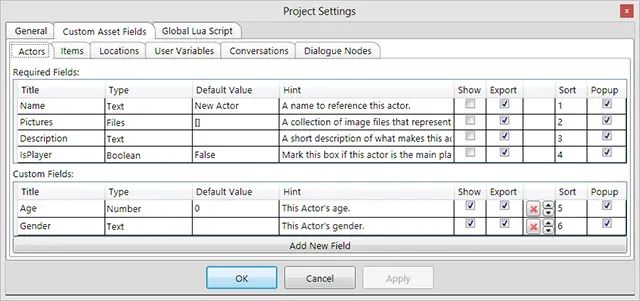
Section titled “Custom asset fields”Project → Project Settings… → Custom Asset Fields adds fields to any asset type; they appear in Properties, are readable from Lua, and are exported.
| Type | Notes |
|---|---|
| Number | For arithmetic. |
| Text / Multiline | Free text; Multiline gets a tall editor. |
| Boolean | A checkbox; True / False. |
| Files | A list of files with add / modify / delete / reorder. Default value []. |
| Actor / Item / Location | A dropdown of that asset type. Default can be an ID or a name. |
| Localization | Dialogue text in another language; listed in the Active Localization selector (Commercial). |
Per field: Title (keep it short, no spaces — it is the Lua name), Default value, Hint (tooltip), Show (in the asset browser), Export (to XML — untick to shrink the file), Sort order, and Popup (include in the new-dialogue popup).
Dialogue markup
Section titled “Dialogue markup”The tags Desktop honours inside Menu Text and Dialogue Text — [f], [a],
|, [pic=N], [pica=N], [picc=N], [em1]…[/em1], [var=Name],
[var=?Name] — are documented once, on the
inline markup page. The pencil button above the
Dialogue Text field inserts them.