
The simulator
ChatMapper has two ways to run a story. ▶ Play is what a player sees — full-screen, paced, with pictures and portraits. Simulate is what a writer needs — the same playthrough as a transcript with the logic laid bare. Both run your conditions and scripts in real Lua, so if it behaves here it behaves in the engine.
Opening the simulator
Section titled “Opening the simulator”Click the ▾ beside Play and choose Simulate (author debugger). The panel opens on the right, the canvas dims everything except the current path, and the story starts at the conversation you have open.
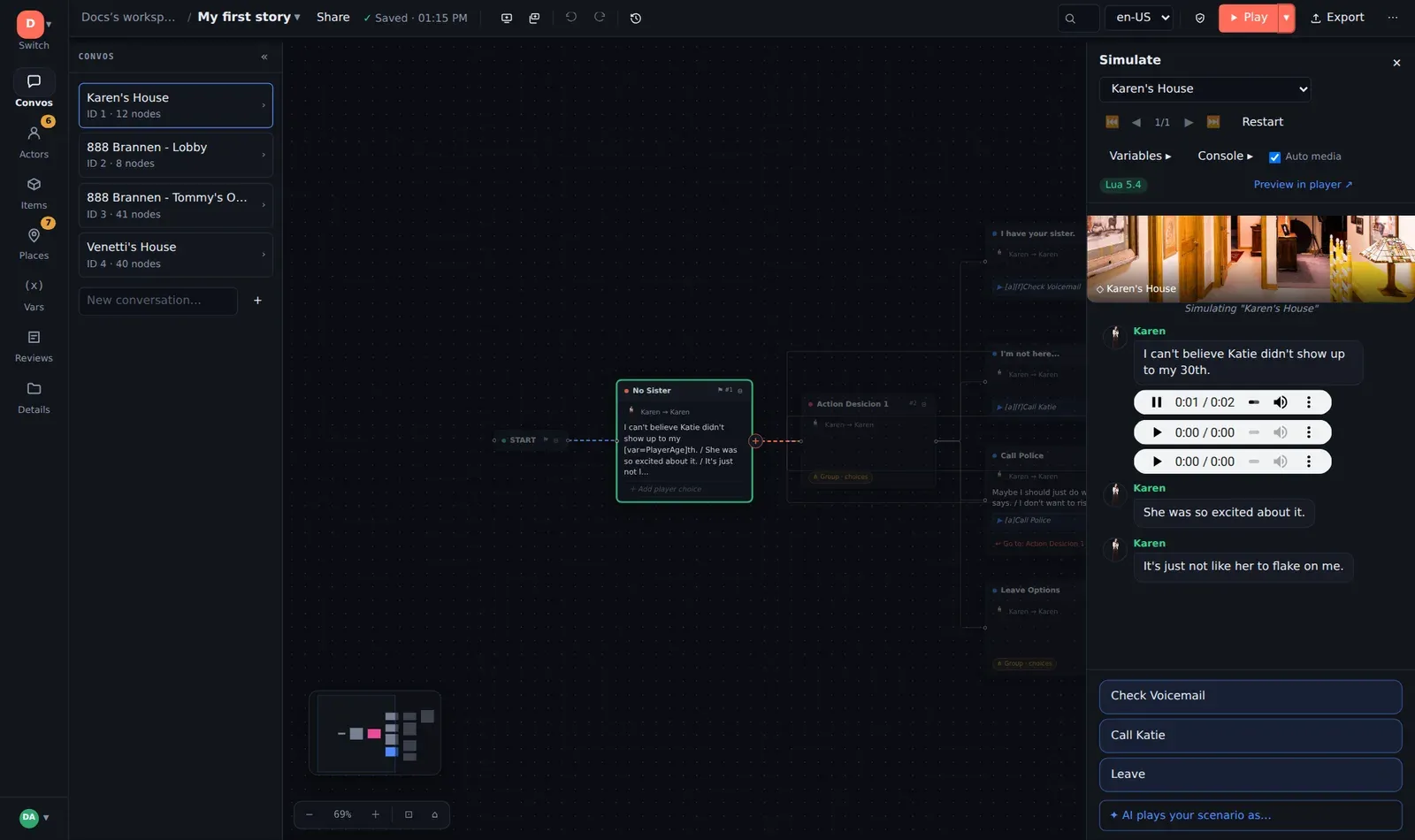
Reading the panel
Section titled “Reading the panel”- Conversation selector — which conversation to run. Switching mid-run keeps your variables (that is how you test “the guard remembers what I said in the lobby”); Restart wipes them and starts over.
- Transcript — every line as it plays, with the speaker’s portrait, and media players for any audio or video on the line (Auto media plays them as they arrive).
- Choices — the menu the player would see. Click one to take it.
- Step controls — ⏮ start, ◀ back, ▶ forward, ⏭ end, with a 3/7 position counter.
Stepping backwards and forwards
Section titled “Stepping backwards and forwards”Every choice is a step in a history you can walk. Step back rewinds one step — variables, statuses and transcript all go with it — and the choices you had at that point are offered again. Take a different one and the history forks from there. This is the fastest way to check every branch of a decision without replaying the opening each time.
The canvas follows along: the path you have taken is highlighted, the current node is centred, and clicking a node on the canvas still selects it for the Inspector, so you can fix a line the moment you see it wrong.
Variables
Section titled “Variables”Open Variables ▸ to see every variable and its current value, updating as scripts run. When a condition does not do what you expected, this is the first place to look.
The Lua console
Section titled “The Lua console”Console ▸ opens a prompt at the bottom of the panel where you can run Lua against the live playthrough:
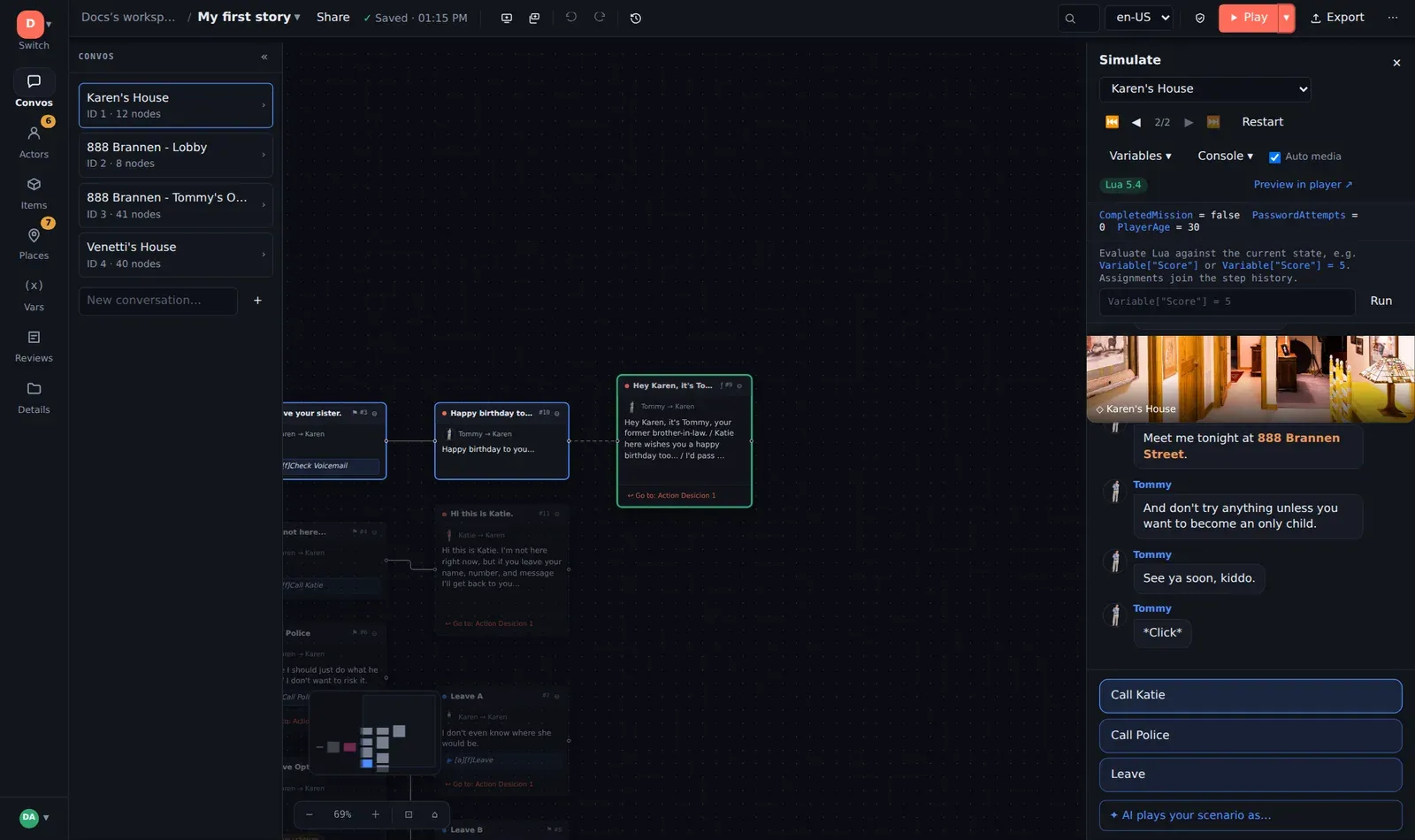
Variable["trust"] -- read a valueVariable["trust"] = 5 -- set one, to test a late branch nowDialog[12].SimStatus -- has node 12 been shown?Variable["trust"] >= 2 and not Variable["angry"] -- try a conditionEnter runs a line; ↑ / ↓ recall earlier ones. The badge above the console says which engine is running: Lua 5.4 (the full language) or the built-in subset if the Lua runtime could not load.
Text-input prompts
Section titled “Text-input prompts”A line containing [?Name] asks the player to type something. The simulator
pauses, shows an input box in place of the choices, and resumes with the value
stored in the variable when you submit — so a scenario that asks for the
player’s name, or a password, is fully testable here.
AI plays your scenario
Section titled “AI plays your scenario”At the foot of the simulator, ✦ AI plays your scenario as… hands the choices to an AI persona — pick an actor, or describe anyone — and watches how the story unfolds for that kind of player. See AI persona playtesting.
Play mode and the player link
Section titled “Play mode and the player link”▶ Play runs the project full-screen from the beginning, paced like a game (Realtime, Brisk or Instant), with the place picture as the backdrop, actor portraits, and speech bubbles you click to advance. Play from this conversation in the same menu starts at the open one.
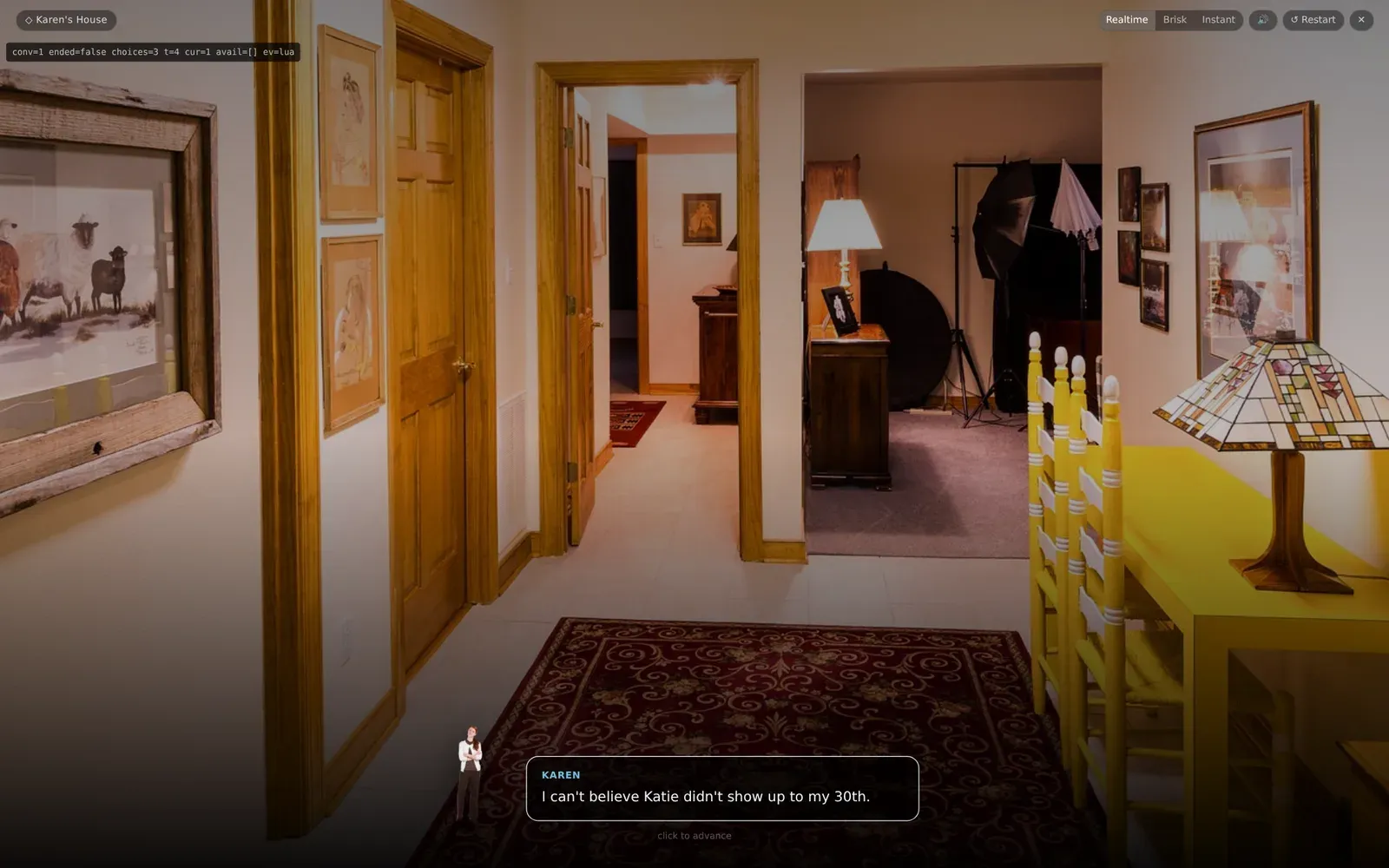
The player link in the Share dialog opens exactly this view on its own, with no editor — the right thing to send a reviewer’s phone.
What the simulator cannot tell you
Section titled “What the simulator cannot tell you”It runs the ChatMapper semantics precisely — conditions, priorities,
passthrough, groups, [f], SimStatus. It does not know what your engine does
with the result: cutscene sequences, voice timing, camera. For those, export
and test in the engine; see Exporting and delivering.