
Interface and assets
The welcome screen
Section titled “The welcome screen”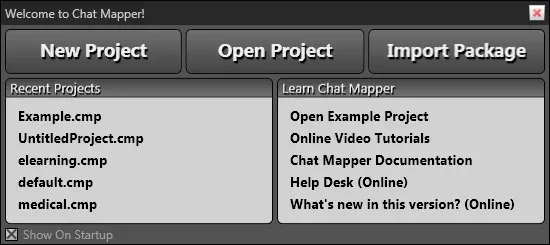
- New Project — you are asked to save immediately (many operations use paths relative to the project file) and to pick a template as the starting point. Templates can be your own; the Project menu can also apply a template to an existing project.
- Open Project — a
.cmpon disk. Import Package (Commercial) — a.cmpkgwith its media. - Recent Projects shows the last five. Show On Startup turns the screen off; Tools → Preferences turns it back on.
The included Example Project exercises most of the features and is the same story that ChatMapper Cloud opens as “the working story”.
The application window
Section titled “The application window”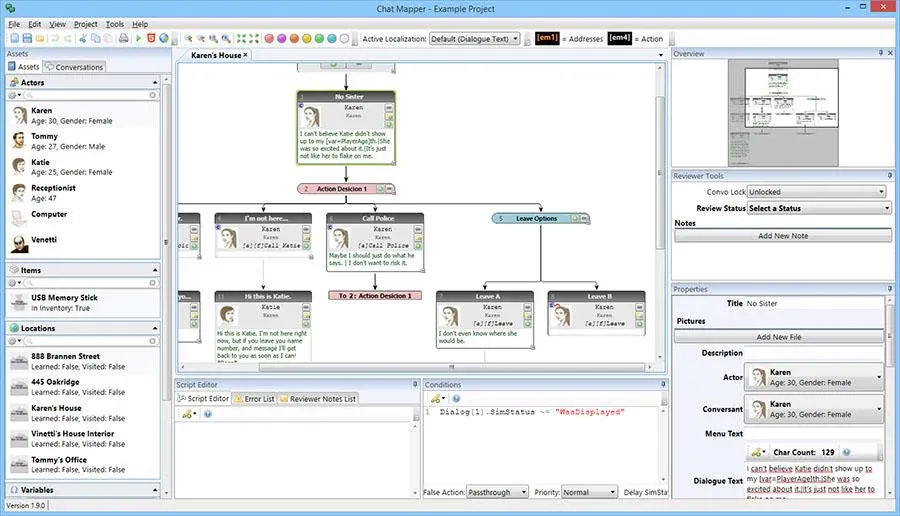
| Pane | What it holds |
|---|---|
| Assets browser | Actors, items, locations and variables, each group collapsible, sortable and filterable by any field. |
| Conversations browser | The conversations. Double-click one to open it in a tab. |
| Main workspace | One tab per open conversation: the tree, a zoom toolbar, expand/collapse-all and node-colour buttons, and the Active Localization selector. |
| Conditions editor | The selected node’s Lua condition, with False Action, Priority and Delay SimStatus beneath. |
| Script editor | The selected node’s Lua script. Both editors have syntax highlighting, undo/redo, and a pencil button of snippet templates. |
| Properties | Every field of whatever is selected — asset or node — including custom fields. |
| Error List | Validation problems; double-click to select the node. |
| Reviewer Notes List | Every note in the project; double-click to jump. |
| Overview | A miniature of the whole tree; click or drag to navigate. |
| Reviewer Tools (Commercial) | Lock a conversation for editing, set a node’s review status, attach notes. |
| File Browser, Video Browser (View → Show) | Drag files onto node fields; the video browser previews WMV clips and embedded video. |
Layouts
Section titled “Layouts”Every pane is a dockable tab: drag it and drop it on the docking guide that appears. The Overview and File Browser can float or auto-hide (the pin icon). View → Window Layout has presets; the layout you close with is the one you get back.
Preferences (Tools → Preferences)
Section titled “Preferences (Tools → Preferences)”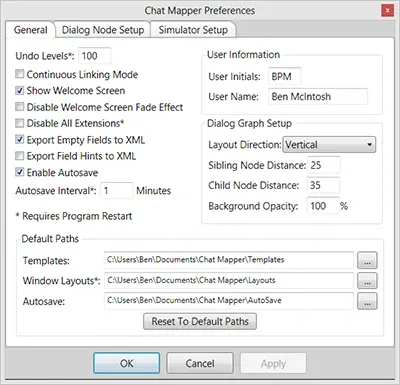
| Setting | Effect |
|---|---|
| Undo levels | Size of the undo stack. Lower it on a low-memory machine. |
| Continuous linking mode | Linking mode stays on after each link until Esc. |
| Disable all extensions | Do not load third-party exporters at startup. |
| Export empty fields to XML / Export field hints to XML | Include empty values and hint text in XML. Turn both on if the XML will be re-imported anywhere; off for the smallest file. |
| Enable autosave / interval | Periodic backup save to the autosave path. |
| Layout direction | Tree drawn vertically or horizontally. |
| Sibling node distance / Child node distance | Spacing of the tree. |
| Background opacity | Opacity of the conversation’s location image behind the tree. |
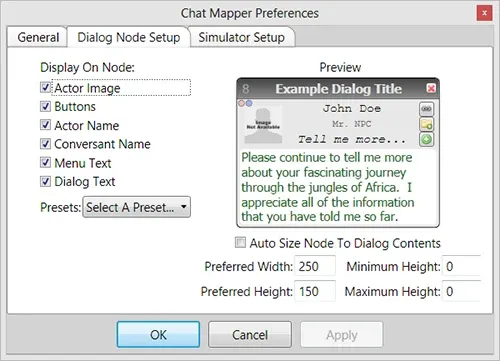
Dialogue Node Setup tab: show or hide each section of the node card (or load a preset), auto-size nodes to their dialogue text, and set the preferred / minimum / maximum node size.
Simulator Setup tab: see The simulator.
Project settings (Project → Project Settings…)
Section titled “Project settings (Project → Project Settings…)”Saved in the project file, so they travel with it.
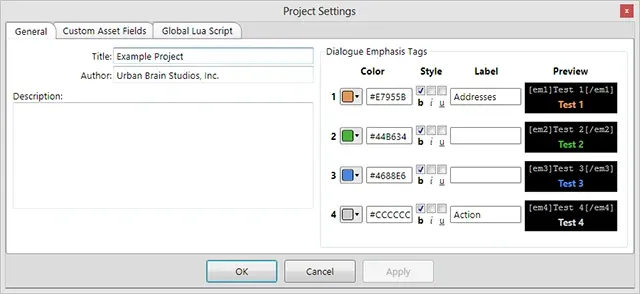
- Dialogue emphasis — the colour, style (bold / italic / underline) and
label of the four
[em1]…[em4]tags. Labels appear as a key above the workspace. - Custom Asset Fields — see Conditions, scripts and Lua.
- Global Lua script — runs once when a simulation starts.
- Localizations (Commercial) — the languages the Active Localization selector offers.
Assets
Section titled “Assets”“Asset” means any noun in the project — actors, items, locations, conversations, variables, and dialogue nodes themselves. Each has fields you edit in Properties.
- Actors. Every dialogue node has an Actor (who speaks) and a Conversant (who listens). Add one with the gear button on the Actors group, Project → Add New → Actor, or Ctrl+Alt+A; delete with Delete.
- Items and Locations. Optional; useful in conditions
(
Item["Brass_Token"].Status). A location image can be shown behind a conversation’s tree and as a simulation backdrop. - Conversations. At least one. Each opens in its own tab.
- Variables. A name and a type — number, text or boolean — chosen at creation, plus an initial value.
Anatomy of a dialogue node
Section titled “Anatomy of a dialogue node”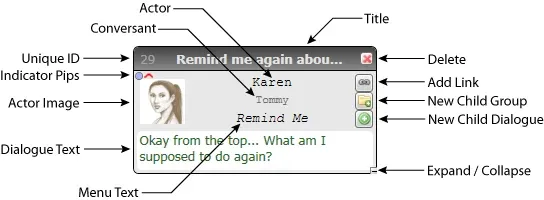
| Part | Meaning |
|---|---|
| ID | Unique within the project; the number scripts refer to (Dialog[12]). |
| Title | Author label. Never shown in simulation. |
| Actor / image, Conversant | Speaker and listener. |
| Menu Text | The player’s choice button. |
| Dialogue Text | What is displayed and spoken when the node plays. |
| Indicator pips | Whether the node has a condition, a script, or non-default condition options. Hover for details. |
| Delete (red ×), New child / group (green +), Make link (chain) | Buttons on the card. Shift-click the + for a sibling; Ctrl and Ctrl+Shift give the group variants. |
| [+] / [−] (bottom right) | Collapse or expand the subtree. Ctrl-click to collapse or expand everything beneath. |