
AI scenario generation
The AI in ChatMapper is a drafting partner, not an autopilot. You describe what you want; it proposes nodes, choices, actors and variables; you approve what goes in. This page covers getting a first draft. The next page covers how proposed changes are reviewed and applied.
The AI box
Section titled “The AI box”With the AI copilot enabled (it is on by default), a composer floats at the bottom of the canvas. Press / to focus it from anywhere.
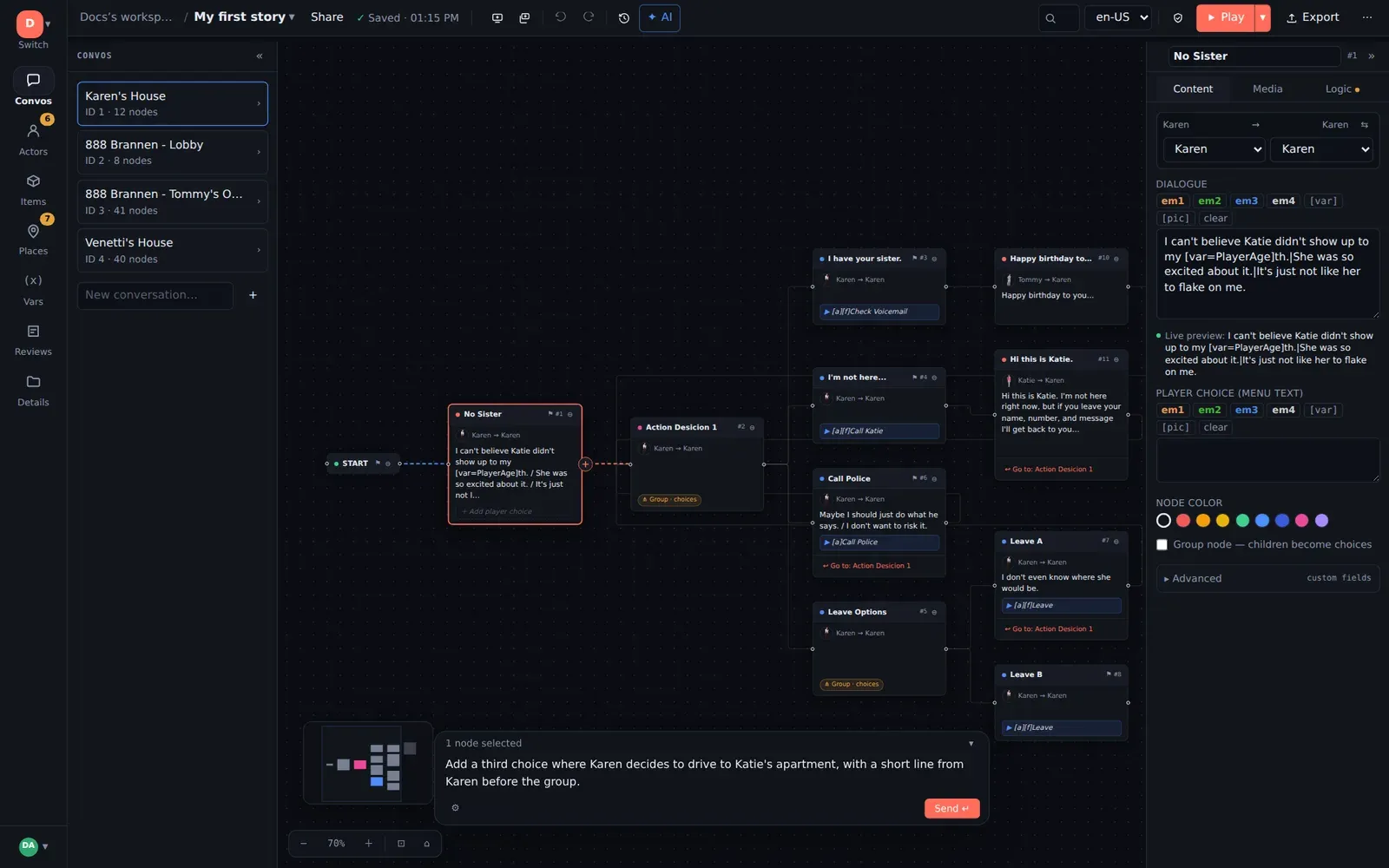
Type what you want in plain English and press Enter:
A ferry crossing at dusk. The player is a courier carrying a sealed letter; the ferryman won’t take them without a token. Three ways to get across: bribe, bluff, or admit what the letter is. Two actors, a
trustvariable, one conversation.
The transcript panel opens on the right with the AI’s reply and a Proposed changes card. Nothing has touched your project yet.
Starting a whole project this way
Section titled “Starting a whole project this way”The welcome screen offers Draft →: describe your story in a sentence and ChatMapper opens a new project with that request already sent, so the first thing you see is a proposal for the opening scene. It is the fastest route from idea to something playable — and because you approve the proposal, you are not committed to any of it.
What it knows
Section titled “What it knows”The AI reads the whole scenario before it answers: every conversation, node, actor, variable, condition and script, plus what you currently have selected. So it can:
- Continue — “add two more choices under the selected node, one aggressive, one evasive”.
- Restructure — “turn this linear scene into a hub the player can return to”.
- Fill gaps — “write a fallback line for every choice that has none”.
- Answer questions — “which nodes can set
trustabove 3?”, “does the captain ever learn the player’s name?”, “summarise Act 2 in five lines”. Questions come back as plain answers, with no proposed changes.
Quick suggestions appear above the box for the current selection — rewrite this line, add more choices, continue from here — as one-click starting points.
Longer builds
Section titled “Longer builds”A whole act is too much for one reply, so the AI works in batches: it proposes a batch, you apply it, it proposes the next. ⚙ Build options beside the box has an Auto-build validated batches switch: each batch that passes validation is applied automatically, with a stop after 5, 10 or 20 batches so a long build can run unattended while you watch it grow. Anything that fails validation still stops and waits for you.
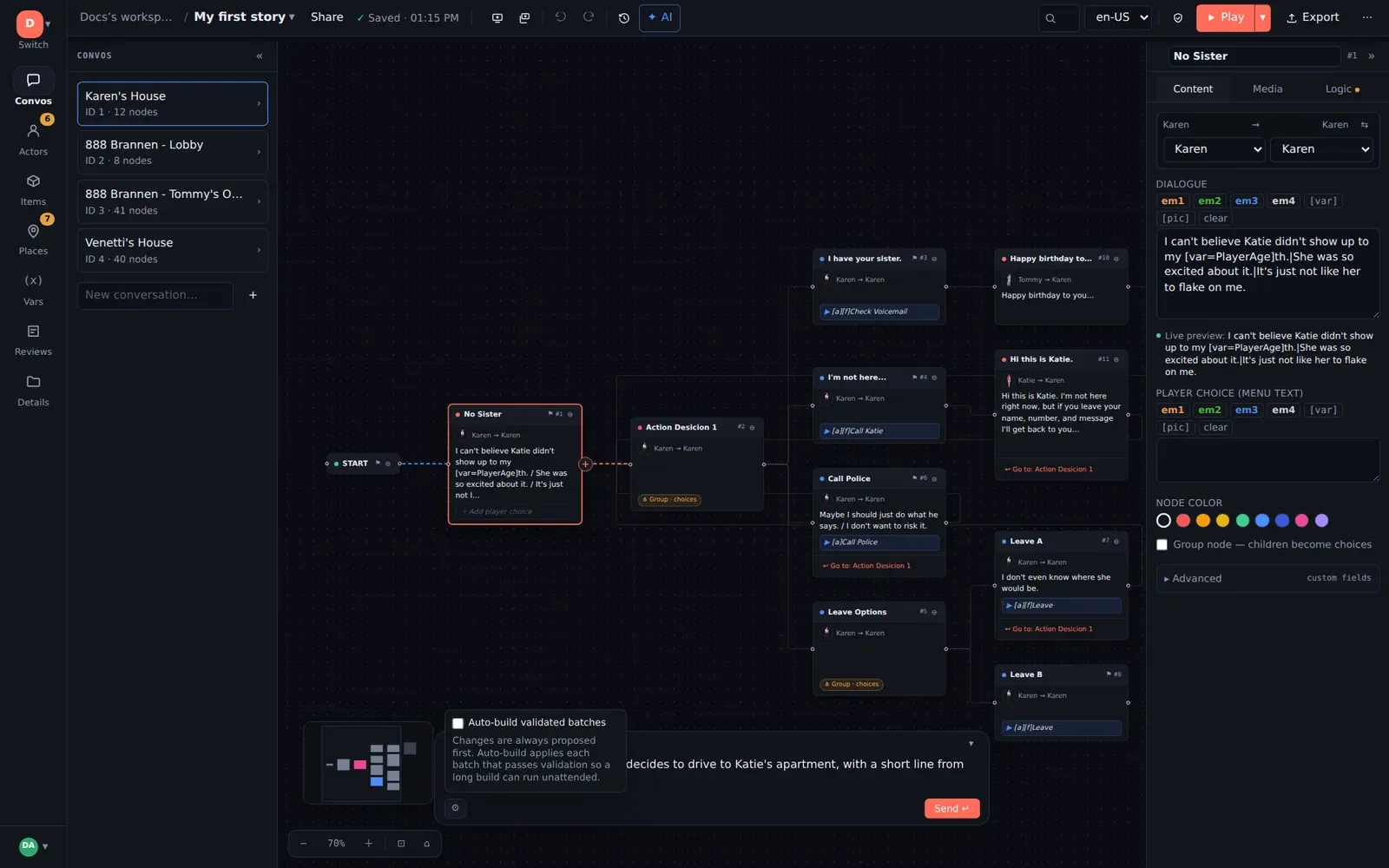
Each request starts or continues a chat, listed in the transcript panel. Chats persist with the project, so “the one where we designed the harbour scene” is there next week for whoever picks the project up. New chat starts a clean context; Delete chat removes one.
Whose AI is it?
Section titled “Whose AI is it?”- Every workspace includes an allowance of hosted AI generations per month (shown under the box: “25 of 25 included AI generations remaining” on the free plan). No setup.
- A workspace admin can add the studio’s own provider key — Anthropic, OpenAI or OpenRouter — under the workspace AI tab. Requests then run on your account and your model choice, with no allowance. Keys are encrypted at rest and are never included in any export.
The AI copilot is a workspace feature switch; an admin can turn it off for the whole workspace under Settings & Labs.
Writing requests that work
Section titled “Writing requests that work”- Name the conversation and the node you mean, or select the node first. “Under the selected node” is unambiguous; “after the bit with the guard” is not.
- Say how many, and in what tone. “Three choices, terse, no more than eight words each.”
- Name variables and actors exactly as they exist. The AI will create new
ones if you ask, but it will not guess that
Trustandtrustare the same. - Ask for structure first, prose second. A skeleton you can see on the canvas is easier to redirect than three hundred words of dialogue.