
Autosave and revision history
There is no Save button to remember. ChatMapper saves as you work, records snapshots you can name, shows what changed between any snapshot and now, and restores an earlier version without losing anything in between. Together they make it cheap to try an idea and cheap to back out of it.
Autosave
Section titled “Autosave”A couple of seconds after you stop typing or dragging, the project saves. The toolbar reads Saving… while a save is in flight and ✓ Saved · time when it lands. Ctrl+S saves immediately if you would rather not wait.
Autosave is per person: your unsaved edits live in your browser until they are sent, and the server accepts them only if nobody else saved a newer version first. If someone did, you get a choice rather than a silent overwrite — see conflict protection.
If a save fails — the connection dropped, say — the indicator reads Save failed — retry and your edits stay in the browser. Click it, or keep typing and let the next autosave carry them.
Snapshots
Section titled “Snapshots”A snapshot is a full copy of the project at a moment in time. Open History in the toolbar to see them.
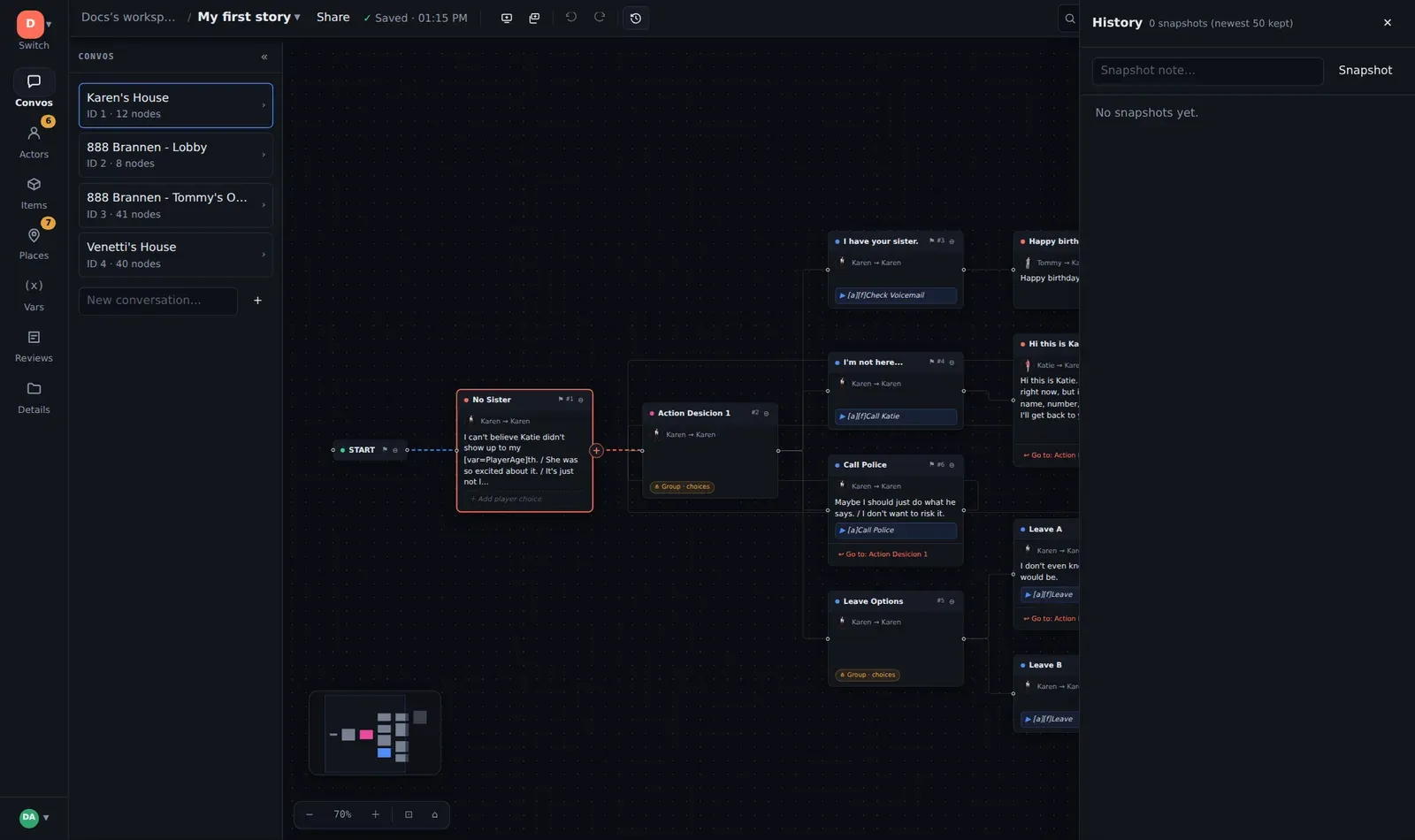
Snapshots are taken:
- Automatically at the start of each editing session — the first save after you open the project records auto: session start, so “what did it look like before I sat down this morning” always has an answer.
- Automatically before anything risky — restoring an older snapshot, and applying a batch of AI edits, both snapshot the current state first.
- Whenever you ask — type a note (“Act 2 draft sent to lead”) and click Snapshot. If you have unsaved changes, it saves first.
Each entry shows when it was taken, who took it, and its note. Revisions made by the AI are marked as such, so a history entry never leaves you wondering who wrote it. The newest 50 snapshots are kept per project.
Comparing versions
Section titled “Comparing versions”Diff vs now on any snapshot shows a structural summary of what has changed since: conversations added or removed (by title), and for each changed conversation how many nodes were added, removed and edited, plus which asset lists changed. It is a quick “what did we do this week” rather than a line-by-line text diff, and it is the fastest way to confirm that a restore is going to give you what you expect.
Restoring
Section titled “Restoring”Restore on a snapshot replaces the current project with that version. It is reversible: the current state is snapshotted first, so a restore you regret is one more restore away. Nothing is ever deleted from history by restoring.
When to lean on it
Section titled “When to lean on it”- Experimenting. Snapshot with a note, tear the scene apart, and either keep it or restore. Undo (Ctrl+Z) covers the last few minutes; snapshots cover the last few weeks.
- Handing over. Snapshot before you send a draft to review, so the notes you get back refer to a version you can always reopen.
- Recovering. Someone deleted a conversation last Tuesday? Find Monday’s session snapshot, Diff to confirm, Restore.
Deleting the whole project is handled separately by the Trash — see Duplicate and recover.