
Importing existing work
You do not start from zero. ChatMapper imports the formats writers already have dialogue in, previews what it found, tells you exactly what it could not translate, and only then writes anything.
Opening the import dialog
Section titled “Opening the import dialog”- From the welcome screen: Import.
- From the workspace panel: Import project.
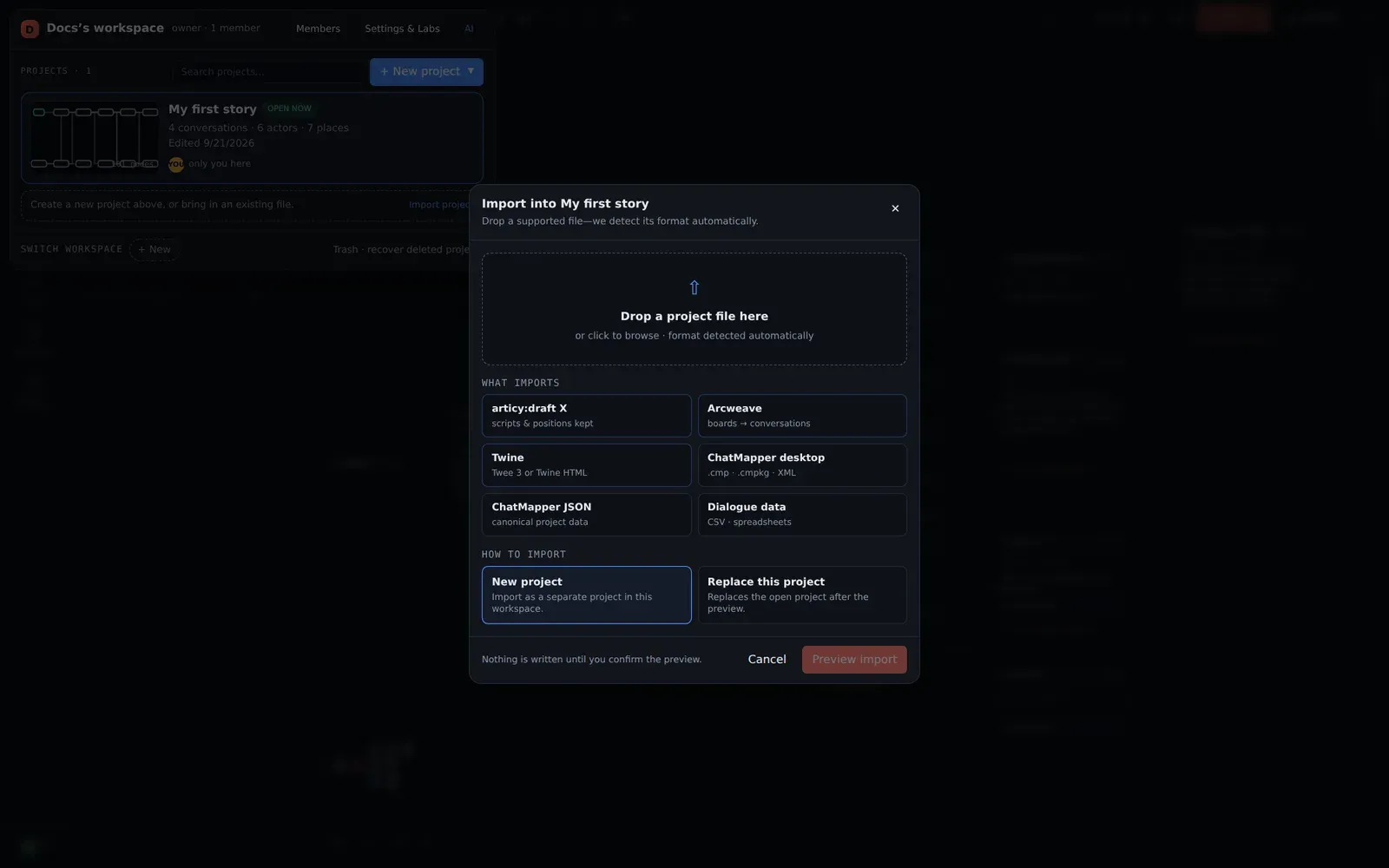
Drop a file or click to browse. The format is detected from the contents,
not the extension — an Arcweave export and an articy export are both .json
and both just work. Then choose:
- New project — import as a separate project in this workspace (the safe default).
- Replace this project — overwrite the open project after the preview. Your previous version is still in History.
Preview import parses the file and shows a report before anything is written: how many conversations, nodes, actors and variables it found, any warnings, and a lossy list — every construct it could not map faithfully, with the original text, so nothing disappears silently. Confirm, and the project opens on the canvas.
What imports
Section titled “What imports”| Source | File | What happens |
|---|---|---|
| ChatMapper Desktop | .cmp, .cmpkg | The Windows app’s native project, decoded on the server. A .cmpkg brings its media too. Everything round-trips: nodes, links, Lua, custom fields, node colours, canvas positions. |
| ChatMapper XML | .xml | Desktop’s XML save. Identical result to .cmp. |
| ChatMapper JSON | .json | The canonical format — see the developer reference. |
| Spreadsheet | .csv, .tsv, .xlsx | One row per line of dialogue with id, actor, text, menu, parent, goto, condition, script, conversation columns — aliases accepted, order free, and a sheet with no id/parent columns becomes a linear chain in row order. The full column guide is Import CSV or Excel. |
| Twine | .twee, .tw, .html | Twee 3 source or a Twine 2 HTML story or archive. A story becomes a conversation, each passage a node, each [[link]] a link; labelled links become player-choice nodes carrying the label. |
| Arcweave | .json | The web app’s Export → JSON. Boards become conversations, elements become nodes, connections become links (their labels become menu text), branches and conditions flatten into ChatMapper conditions with priority, characters become actors. |
| articy:draft X | .json | The single-document JSON export. Entities become actors, dialogues become conversations, fragments become nodes (text, menu text, speaker, stage directions), hubs become group nodes, jumps become links, global variables become variables. |
What survives, what is flagged
Section titled “What survives, what is flagged”Every importer keeps the original text of anything it could not translate
in a custom field on the node — twine_markup_raw, arcweave_script_raw,
articy_script_raw, and an articy_id / element ID for traceability — and
lists it in the report. Typical items:
- Twine macros (
<<if>>,<<set>>beyond simple assignments) — stripped from the display text, preserved raw. - Arcweave arcscript beyond comparisons and simple assignments.
- articy’s true/false condition pins — ChatMapper gates a whole node, so both branches become plain links and the false branch is flagged for you to wire by hand.
- Positions: articy and Arcweave positions are kept; Twine’s passage grid is rescaled to ChatMapper’s card size.
The developer reference documents each mapping in full — worth reading before a large migration.
After importing
Section titled “After importing”- Validate. Imports are structurally clean by construction, but a project that relied on features the source tool has and ChatMapper does not will show it here.
- Read the
*_rawfields. Search (Ctrl+F) for_rawto find every node that needs a human to finish the translation. - Simulate. Play the main path; imported conditions are the first thing to misbehave.
- Assign the player. Some sources have no notion of a player actor; tick Is player on the right one so exports that need it work.
Migrating from ChatMapper Desktop
Section titled “Migrating from ChatMapper Desktop”If your team’s projects are .cmp files, import each one as a new
project. Everything Desktop stores comes across, including Lua, custom
fields and node colours, and the project can be exported back as XML or
CMPKG at any time — so a studio can move to the web editor without cutting
off anyone who still uses the Windows app. The
game developers’ migration guide has the
detail on what changed.