
Review and feedback
Feedback on dialogue is only useful if it points at the line. Reviewer notes live on the node, travel with the project, and can be exported for a meeting. Reviewers do not need editing rights — or, for a single project, a workspace seat.
Leaving a note
Section titled “Leaving a note”Select a node and open the Logic tab; the Review section at the bottom holds the node’s notes. Type and press Enter. Each note records who wrote it and when.
Nodes with open notes get a badge on the canvas, so a pass through a conversation shows at a glance where the discussion is.
Review status
Section titled “Review status”Beside the notes, each node has a review status: None, Needs review, Approved or Rejected. It is independent of the notes — a node can be approved with three resolved notes on it, or rejected with none. Select several nodes and the inspector offers Set status on all, so signing off a whole branch is one action.
The Reviews panel
Section titled “The Reviews panel”Reviews in the rail lists every note in the project.
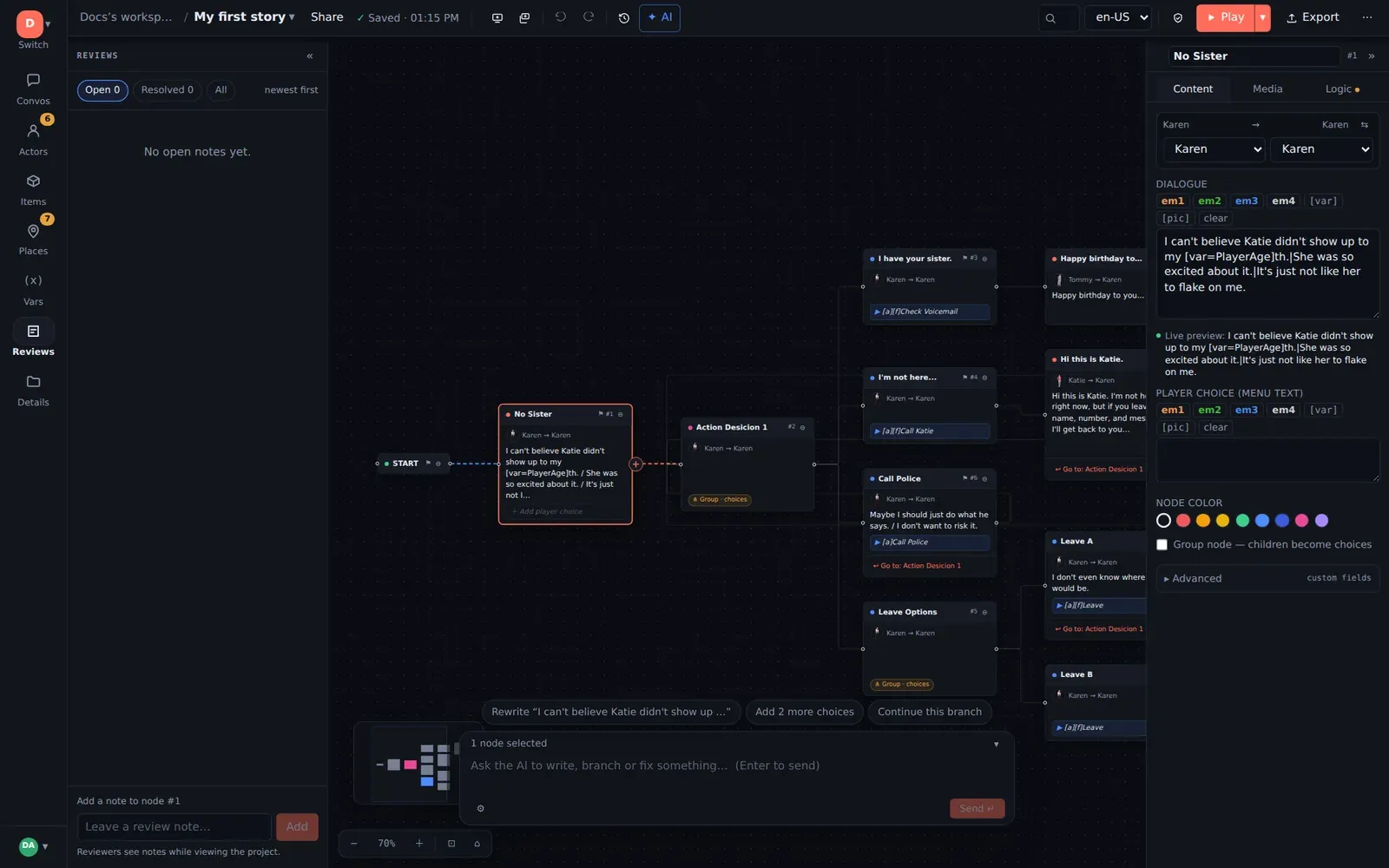
- Filter open, resolved or all; counts show beside each.
- Go to node jumps the canvas to the note.
- ✓ Resolve closes a note; Reopen brings it back. Resolved notes stay in the project — hidden by default, one click away.
- Change a node’s review status directly from the list.
Who can review
Section titled “Who can review”Anyone with the Reviewer role — on the workspace, or granted for one project through Share — gets a read-only editor with notes enabled. They can add, resolve and reopen notes and set review status, and nothing else. Their saves never touch the structure of the project, so a reviewer working at the same time as a writer causes no conflicts.
Invite one from Share in the toolbar: enter an email, choose Reviewer, done. They need no account in advance.
Exporting notes
Section titled “Exporting notes”Export → Reviewer Notes CSV produces one row per note — conversation, node, the node’s review status, author, resolved or not, and the text. Open it in a spreadsheet for a review meeting, or file it with the milestone. Everything CSV includes the same rows alongside the dialogue.
Asking the AI in a note
Section titled “Asking the AI in a note”When the AI copilot is enabled, mention @ai in a note and it replies in the thread with the scenario as context: “@ai does this line contradict what she said in the lobby?” It answers as a reviewer would — it does not edit anything from a note. See Controlled AI editing.
A review loop that works
Section titled “A review loop that works”- Writer snapshots the draft (History → Snapshot, with a note).
- Writer shares the project with the reviewer as Reviewer, or sends them the player link if they already have access.
- Reviewer plays it (▶ Play, or the player link on a phone) and leaves notes on the lines that need work.
- Writer works through the Reviews panel — open filter — resolving as they go, and sets Approved on what is done.
- Export the notes CSV if the producer wants a record.